How Skillet controls who is in your organization and what they can access: the account roles and what each can do, how to manage members and seats, and how to use groups to organize people and scope dashboards, assignments, and reports.
IN THIS ARTICLE
Account roles at a glance
Skillet controls what each person can access and do through account roles. In Manage Members, each person is either an Administrator or a Team member.
Administrator: full access to configure the organization, manage members and groups, build and govern scenario content, assign and host roleplays, and view all reports and analytics.
Team member: practices the roleplays assigned to them and reviews their own results.
What each role can do
The capabilities below apply to each role.
Managing members
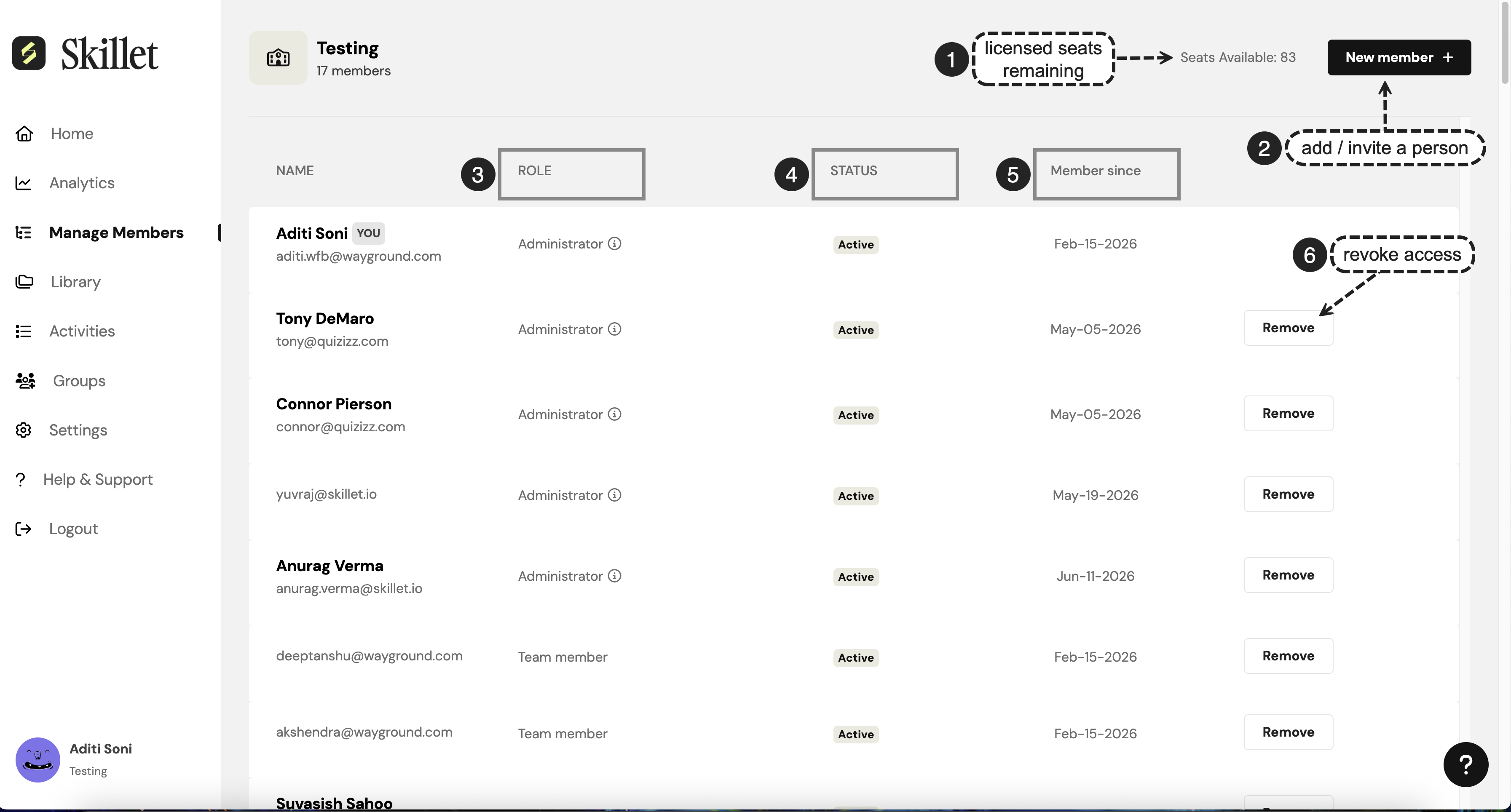
To see everyone in your organization, open Manage Members from the left navigation. Manage Members lists every person, with:
Name and email address.
Role, either Administrator or Team member.
Status, such as Active.
Member since, the date the person was added.
A Remove action on each row.
At the top of the page, Seats Available shows how many licensed seats remain, and New member lets you add people.
Adding and inviting members
To add someone to your organization:
In Manage Members, select New member.
Enter the person’s work email to send them an invitation to join your organization.
Once added, they appear in the member list and can sign in to Skillet.
Each active member uses one licensed seat, so monitor Seats Available as you add people.
Changing a role or removing a member
To change what someone can do, update their Role in Manage Members.
To revoke someone’s access, use Remove on their row.
Organizing people with groups
Groups let you organize people into the teams that match how your organization is structured, whether by region, district, product, or cohort.
To create and manage groups, open Groups from the left navigation. From there you can:
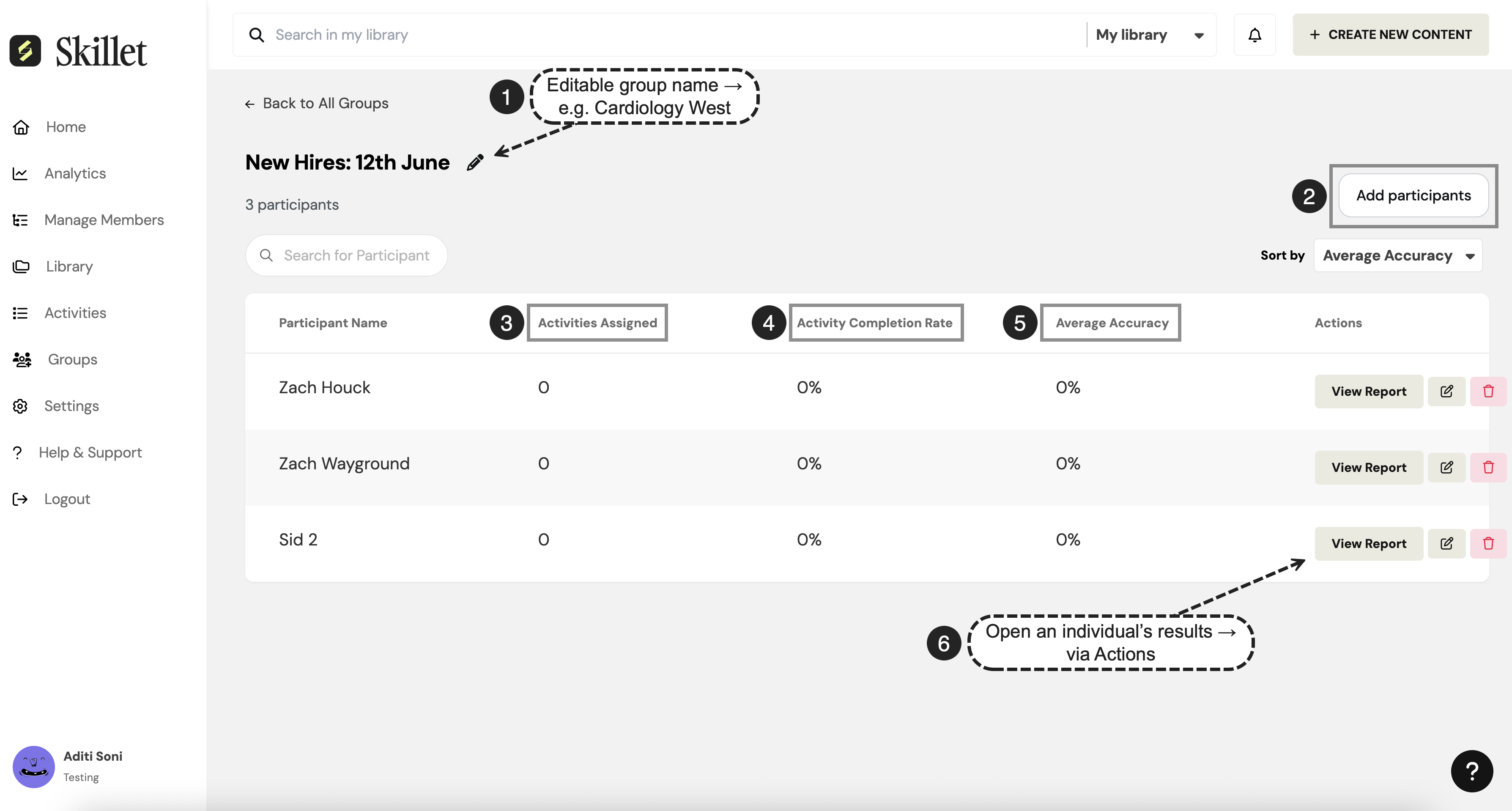
Create a group and give it a name (for example, “Cardiology West”).
Add participants to the group.
Open a group to see its members alongside Activities Assigned, Activity Completion Rate, and Average Accuracy, with the option to open an individual’s report.
Using groups to scope dashboards, assignments, and reports
Once people are grouped, you can keep large teams manageable by scoping your view:
Scope your dashboard: on the Home dashboard, filter by group to focus on a specific team.
Scope assignments: assign a roleplay to one or more groups at once (see Assign a roleplay).
Scope reports: filter Activity Reports by group to review results for just that team.
Signing in and single sign-on
Members sign in to Skillet with single sign-on (SSO). Setting up SSO and managing identity providers is covered in Setting up SSO for your organization.